
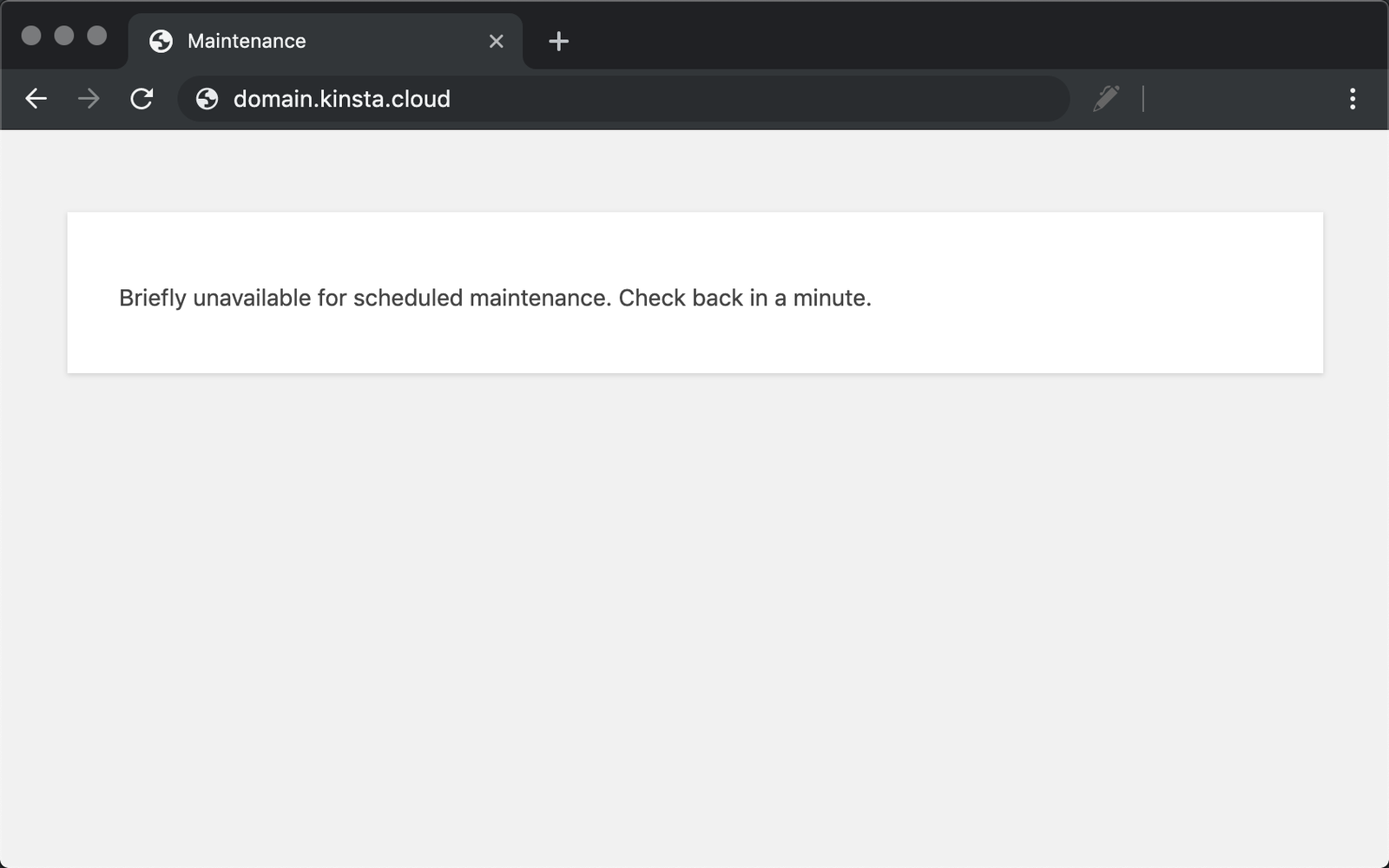
The “Briefly unavailable for scheduled maintenance. Check back in a minute.” error is a core WordPress protective state, not a catastrophic software failure. When you initiate an update for the WordPress core, active themes, or installed plugins, the application executes a script that dynamically writes a temporary hidden file named .maintenance directly into your server’s root directory. This file triggers the wp_maintenance() function, effectively pausing all backend and frontend PHP execution to prevent database schema corruption or conflicting script requests while core files are actively being overwritten.
Under optimal conditions, WordPress deletes this .maintenance file the exact millisecond the update sequence finishes. However, if your web server experiences a PHP timeout, exhausts its allocated PHP memory limit, or encounters a fatal scripting conflict during the update cycle, the background process terminates prematurely. The .maintenance file becomes orphaned, locking your entire architecture in maintenance mode indefinitely. This technical guide outlines the precise steps to manually remove the lock file, clear the system error, and resolve the underlying server resource bottlenecks that caused the update failure.
Prerequisites Before You Begin
Before altering server files, ensure you have the following access levels and tools readily available:
-
Server-Level File Access: Valid SFTP credentials, SSH keys, or administrative access to your hosting control panel (e.g., cPanel, Plesk, or SiteTools).
-
Secure File Transfer Client: An installed and configured desktop FTP client (e.g., FileZilla, WinSCP, or Cyberduck).
-
System Backups: A recently verified backup of your
public_htmldirectory and your MySQL/MariaDB database to prevent data loss in the event of human error. -
Code Editor: A plain text editor designed for syntax highlighting (e.g., VS Code, Sublime Text, or Notepad++) to safely modify core PHP files.
-
Command Line Interface: (Optional) Terminal or PuTTY for SSH access if you prefer command-line execution over graphical interfaces.
Step-by-Step Solutions
Method 1: Manually Purge the .maintenance File via SFTP (Standard Approach)
This is the most direct resolution for overriding the stuck lock file using a graphical file transfer client.
Step 1: Initialize an SFTP Connection to Your Web Server Open your preferred FTP client (such as FileZilla). In the top connection bar, input your server’s IP address, your SFTP username, your secure password, and ensure the port is set to 22 (the standard port for encrypted SFTP, rather than unencrypted FTP on port 21). Click Quickconnect. To verify this step was successful, look at the client’s status log for the message “Status: Directory listing of ‘/’ successful,” indicating you have successfully authenticated and penetrated the server.
Step 2: Navigate to the WordPress Installation Root In the right-hand pane of your FTP client (the “Remote site” window), navigate into the root folder where your WordPress architecture is deployed. Depending on your server environment (Apache, Nginx) and host, this directory is typically named public_html, www, htdocs, or located at /var/www/html/. Click into this folder so you can see your core directories like wp-admin, wp-content, and wp-includes. To verify this step was successful, ensure you can see the wp-config.php file listed in the current directory pane.
Step 3: Reveal Hidden System Files Because the lock file begins with a period (.maintenance), Unix-based servers classify it as a hidden system file. By default, your FTP client might suppress these. In FileZilla, click Server in the top application menu, then select Force showing hidden files. To verify this step was successful, scan the root directory file list and look for files beginning with a dot, such as .htaccess and .maintenance.
Step 4: Delete the Lock File and Clear Object Caches Locate the .maintenance file in the root directory. Right-click the file and select Delete from the context menu. Confirm the prompt to permanently remove the file from the server. If your host utilizes server-side object caching (like Redis or Memcached), you must also purge the cache, as the maintenance state might be temporarily cached in memory. To verify this step was successful, open a new incognito window in your web browser, navigate to your domain, and confirm the site renders normally instead of displaying the maintenance screen.
Method 2: Remove the Lock File via SSH and WP-CLI (Sysadmin Approach)
For server administrators managing VPS or dedicated environments, executing commands via SSH is significantly faster and bypasses graphical file client delays.
Step 1: Authenticate via Secure Shell (SSH) Open your Terminal (macOS/Linux) or PowerShell/PuTTY (Windows). Execute the SSH command to connect to your server using your credentials. Type ssh username@your_server_ip and press Enter. Provide your cryptographic key passphrase or password when prompted. To verify this step was successful, check that your command line prompt changes from your local machine name to your remote server’s hostname (e.g., root@ubuntu-server:~#).
Step 2: Locate the Web Root Directory Navigate directly to your web server’s document root using the change directory (cd) command. Execute cd /var/www/html/ (adjust this path if your server block defines a different root, such as /var/www/vhosts/[domain.com/httpdocs/](https://domain.com/httpdocs/)). Once inside, type ls -la to list all files, including hidden dot-files. To verify this step was successful, review the terminal output and physically locate the .maintenance file in the printed directory list.
Step 3: Remove the File via Command Line Execute the remove command to delete the file permanently. Type rm .maintenance and press Enter. If your user lacks standard write permissions for the web group, you may need to escalate privileges by executing sudo rm .maintenance. To verify this step was successful, type ls -la again; the .maintenance file should no longer appear in the directory printout.
Step 4: Utilize WP-CLI as a Failsafe If you manage servers at scale, you should utilize WP-CLI (WordPress Command Line Interface). If the .maintenance file is gone but the site is still malfunctioning due to a stuck database option, run the command wp maintenance-mode deactivate. To verify this step was successful, watch for the terminal output reading: “Success: Deactivated maintenance mode.”
Method 3: Mitigate the Root Cause by Expanding PHP Resource Limits
Deleting the lock file restores access, but it does not fix the broken plugins or the server constraints that caused the update to fail in the first place. If your server lacks sufficient memory, the error will immediately return the next time you attempt an update.
Step 1: Access and Edit wp-config.php Using your FTP client or SSH, open the wp-config.php file located in your site’s root directory. Right-click the file and select View/Edit to open it in your designated text editor. Scroll down to the line that reads /* That's all, stop editing! Happy publishing. */. To verify this step was successful, ensure you have the file open in an editor with the ability to save directly back to the server.
Step 2: Increase the PHP Memory Limit Just above the “stop editing” line, insert the following code explicitly: define( 'WP_MEMORY_LIMIT', '512M' );. This forces WordPress to request 512 Megabytes of memory from the server, preventing memory exhaustion fatals during heavy plugin batch updates. Save the file and confirm the FTP client uploads the modified version back to the server. To verify this step was successful, log into the WordPress dashboard, navigate to Tools > Site Health > Info > Server, and ensure the “PHP memory limit” parameter now reads 512M.
Step 3: Manually Re-trigger the Failed Updates Because the previous update failed mid-execution, your files may be fragmented. Return to the WordPress admin panel, click Dashboard > Updates. Do not bulk-update. Update your plugins one at a time, allowing the server to process each package individually without timing out. To verify this step was successful, watch for the “Update completed successfully” confirmation screen for every single plugin you manually push through the system.
Troubleshooting Common Pitfalls
If you deviate from the standard architecture or encounter secondary errors after removing the lock file, refer to this diagnostic table:
3 Common Mistakes Users Make During This Process
-
Bulk Updating Core and Plugins Simultaneously: Requesting the server to update the core software and 20 heavy plugins concurrently spikes CPU usage and guarantees a PHP timeout. Always update WordPress core first, then update plugins in batches of 3-5.
-
Editing Core Files Without Syntax Knowledge: Accidentally deleting a semicolon (
;) when modifying thewp-config.phpfile will cause an immediate PHP 500 fatal error, taking the site offline entirely. -
Ignoring the Failed Update: Simply deleting the
.maintenancefile does not mean your site is healthy. The update failed halfway through, meaning you are running mismatched or incomplete plugin files which creates critical security vulnerabilities.
Final Thoughts
The maintenance lock is a symptom of poor server resource allocation or aggressive update habits. Moving forward, execute updates via WP-CLI during off-peak traffic hours, maintain strict staging environments to test updates before pushing to production, and verify your hosting provider allocates a minimum of 256MB PHP memory for seamless runtime execution.