
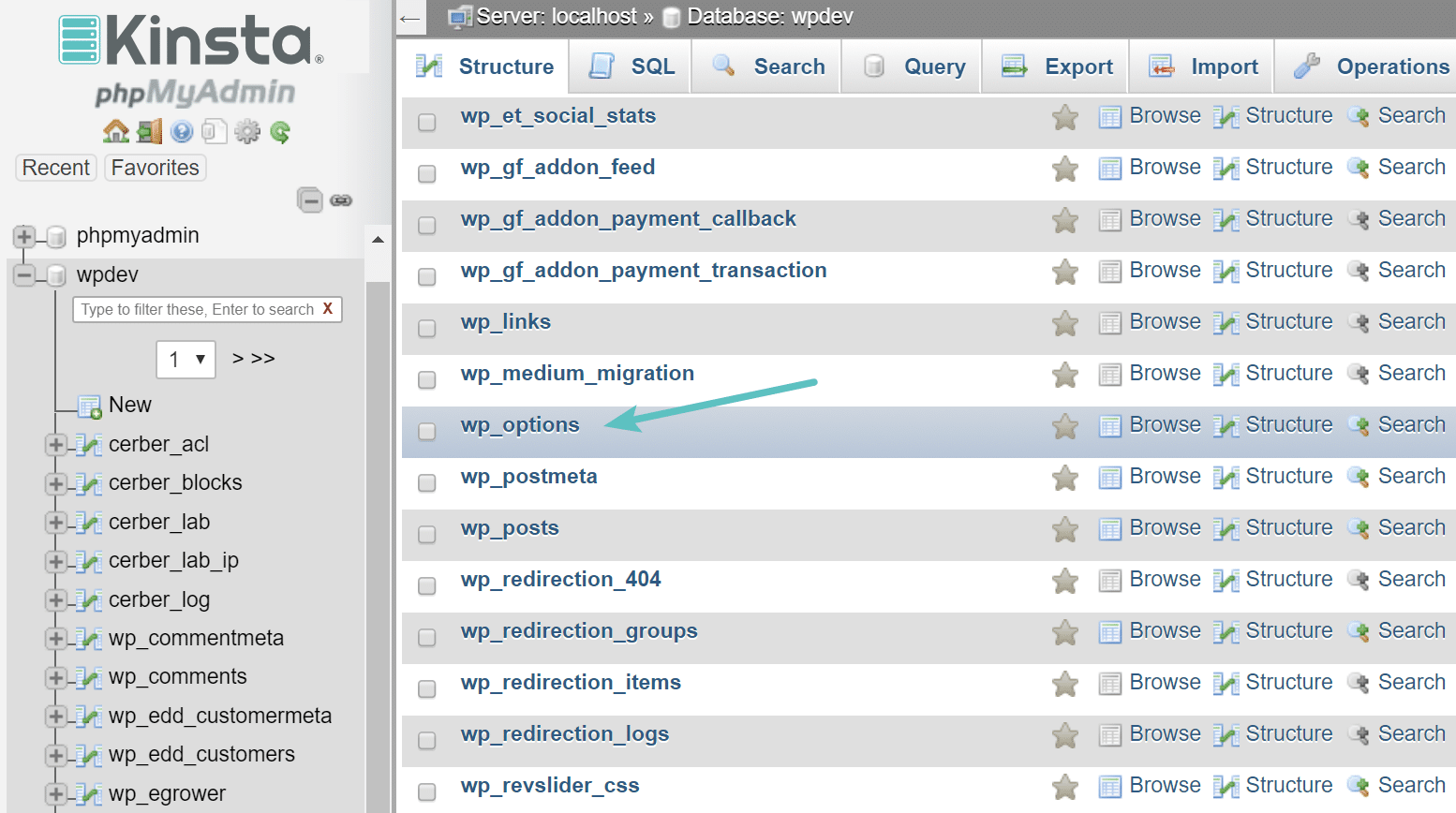
The WordPress wp_options table is the central nervous system for your application’s configuration, storing everything from the site URL to complex plugin settings. By design, WordPress executes the wp_load_alloptions() function on every single page load—both frontend and backend. This function runs a broad SQL query: SELECT option_name, option_value FROM wp_options WHERE autoload = 'yes'.
Ideally, this autoloaded data should remain under 800 KB. However, as you install, test, and remove plugins, orphaned configurations and expired transients are frequently left behind. Because these abandoned rows remain flagged with autoload = 'yes', your server is forced to pull megabytes of useless serialized strings into PHP memory on every single HTTP request. This architectural bottleneck causes severe Time to First Byte (TTFB) delays, CPU spikes, and a sluggish wp-admin dashboard. This technical guide provides the precise SQL queries and command-line operations required to diagnose autoload bloat, safely purge orphaned transients, and toggle heavy options to offload your RAM and restore microsecond response times.
Prerequisites Before You Begin
Before modifying database schemas and deleting serialized arrays, ensure you have the following access levels and failsafes deployed:
-
Raw Database Access: Credentials to log into phpMyAdmin, Adminer, or direct terminal access to execute MySQL/MariaDB queries.
-
Database Snapshot: A complete
.sqlexport of thewp_optionstable. Modifying serialized arrays manually can instantly break the application if the string length count becomes mismatched. -
WP-CLI Installed: Command-line access via SSH to utilize WordPress CLI, which safely handles the serialization and deserialization of PHP arrays during modifications.
-
Staging Environment: A 1:1 clone of your production database to test option deletion. Never drop rows from a live production table without verifying the application’s reliance on that data.
-
Object Cache Disabled: Temporarily flush and disable Redis or Memcached so you can measure the raw TTFB improvement of your MySQL queries in real-time.
Step-by-Step Solutions
Method 1: Querying and Auditing Autoload Size via phpMyAdmin (The Diagnostic Phase)
Before deleting any data, you must quantify the exact size of your autoloaded payload and identify which specific plugins are hoarding memory.
Step 1: Access the Database Interface Log into your hosting control panel (cPanel, Plesk, or managed dashboard) and open phpMyAdmin. In the left-hand sidebar, click on your WordPress database name to expand the table list. Click on the wp_options table (note: your table prefix may differ, e.g., wp_xyz_options). To verify this step was successful, look at the main window to ensure you see columns labeled option_id, option_name, option_value, and autoload.
Step 2: Calculate Total Autoload Memory Footprint Click the SQL tab at the top of the phpMyAdmin interface. You need to determine exactly how much data is being loaded into RAM on every request. Paste the following query into the execution box: SELECT SUM(LENGTH(option_value)) / 1024 / 1024 AS autoload_size_mb FROM wp_options WHERE autoload = 'yes'; Click the Go button to execute the query. To verify this step was successful, review the returned value. If the number is greater than 1.00 (meaning 1 MB), your database is officially bloated and requires immediate optimization.
Step 3: Identify the Top 20 Heaviest Autoload Rows Clear the previous query from the SQL box. To isolate the exact plugin or theme causing the bottleneck, you must sort the rows by their byte size. Paste the following diagnostic query: SELECT option_name, length(option_value) AS option_value_length FROM wp_options WHERE autoload='yes' ORDER BY option_value_length DESC LIMIT 20; Click Go. To verify this step was successful, you will see a table listing the 20 largest options. Look for recognizable plugin prefixes (e.g., _transient_wc_ for WooCommerce, wpseo_ for Yoast, or redux_ for heavy theme frameworks) to target for cleanup.
Method 2: Safely Modifying and Purging Bloated Options (The Cleanup Phase)
Once you have identified the oversized rows, you must intervene. You have two choices: delete the row completely if the plugin no longer exists, or change the autoload flag to no if the data is still needed but not on every single page.
Step 1: Delete Orphaned Data from Uninstalled Plugins Cross-reference the results from your diagnostic query against your currently active plugins. If you see a massive 400 KB row titled wp_makewebbetter_options, but you uninstalled that plugin six months ago, it is dead weight. In phpMyAdmin, click the Browse tab. Use the Filter rows search box to find the specific option_name. Click the red Delete button next to the row. To verify this step was successful, run the diagnostic query from Method 1 again; the total autoload_size_mb should be noticeably smaller.
Step 2: Toggle Autoload to ‘No’ for Heavy Active Options Some plugins mistakenly autoload data that is only needed on a specific admin settings page (like a massive array of geographical IP rules or rewrite rules). You do not want to delete this data, but you must stop it from autoloading globally. Locate the heavy row (e.g., rewrite_rules). Double-click the cell in the autoload column. Change the text from yes to no and press Enter to save. By setting this to no, the plugin can still query the database explicitly via get_option() when needed, but it skips the global memory payload. To verify this step was successful, load the frontend of your website. If a critical layout element breaks, that specific option actually required global autoloading. Change it back to yes immediately.
Step 3: Purge Stuck and Expired Transients Transients are temporary cached data (like API responses from Twitter or remote server checks) stored in wp_options with an expiration timestamp. If WordPress’s WP-Cron system fails, these transients never delete themselves, infinitely bloating the table. Click the SQL tab and execute this query to blindly wipe all transients (WordPress will safely regenerate the ones it still needs): DELETE FROM wp_options WHERE option_name LIKE '\_transient\_%' OR option_name LIKE '\_site\_transient\_%'; To verify this step was successful, check the query execution response; it will state how many rows were successfully dropped from the table.
Method 3: Automating Cleanup via WP-CLI (The Sysadmin Approach)
Manually clicking through phpMyAdmin is slow and risks human error. Systems Administrators managing multiple servers should utilize WP-CLI over SSH to interact with the WordPress API directly, which safely handles data serialization without corrupting arrays.
Step 1: Authenticate via SSH and Locate the Web Root Open your terminal client. Execute the SSH connection command: ssh username@your_server_ip. Once authenticated, navigate directly to your web server’s document root by executing cd /var/www/html/ (or your specific public_html path). To verify this step was successful, type wp core is-installed. If WP-CLI is configured correctly, the terminal will silently return a success state without errors.
Step 2: Audit Autoload Options via CLI You can pull the exact same data as the phpMyAdmin queries directly in the terminal using WP-CLI’s wp db query wrapper. Run this command to print the top 10 heaviest autoload options: wp db query "SELECT option_name, length(option_value) AS option_value_length FROM wp_options WHERE autoload='yes' ORDER BY option_value_length DESC LIMIT 10;" To verify this step was successful, review the tabular data printed directly in your terminal window, noting the names of the bloated options.
Step 3: Safely Delete Transients To instantly clear all cached transients across the entire multisite network or single install without writing complex SQL strings, use the built-in transient command: wp transient delete --all To verify this step was successful, watch for the green success message in the terminal reading: “Success: transients deleted from the database.”
Troubleshooting Common Pitfalls
If you deviate from the safe diagnostic parameters or encounter application errors after modifying the database, refer to this diagnostic table:
3 Common Mistakes Users Make During This Process
-
Changing
autoload='no'on Core WordPress Options: Blindly toggling every large option to ‘no’ will break your site. Core options likerewrite_rules,active_plugins, andwp_user_rolesare fundamentally required on every page load. Only toggle options generated by third-party plugins. -
Ignoring Object Caching Architecture: Cleaning the database is only half the battle. Failing to install a persistent object cache like Redis or Memcached means your server is still hitting the MySQL disk for the remaining autoload data. Object caching moves the
wp_optionspayload into RAM, bypassing MySQL entirely. -
Deleting Transients via SQL Without Pausing Traffic: Executing a massive
DELETEquery on transients while the site is under heavy traffic can cause table locks and database deadlocks. Always perform heavy database purges during off-peak hours or put the site into maintenance mode first.
Final Thoughts
Optimizing the wp_options table is not a one-time fix, but a required routine maintenance task for any scaling WordPress architecture. Implement strict plugin auditing, utilize WP-CLI for safe transient purging, and deploy a persistent Redis object cache to permanently shield your MySQL database from repetitive autoload queries.