
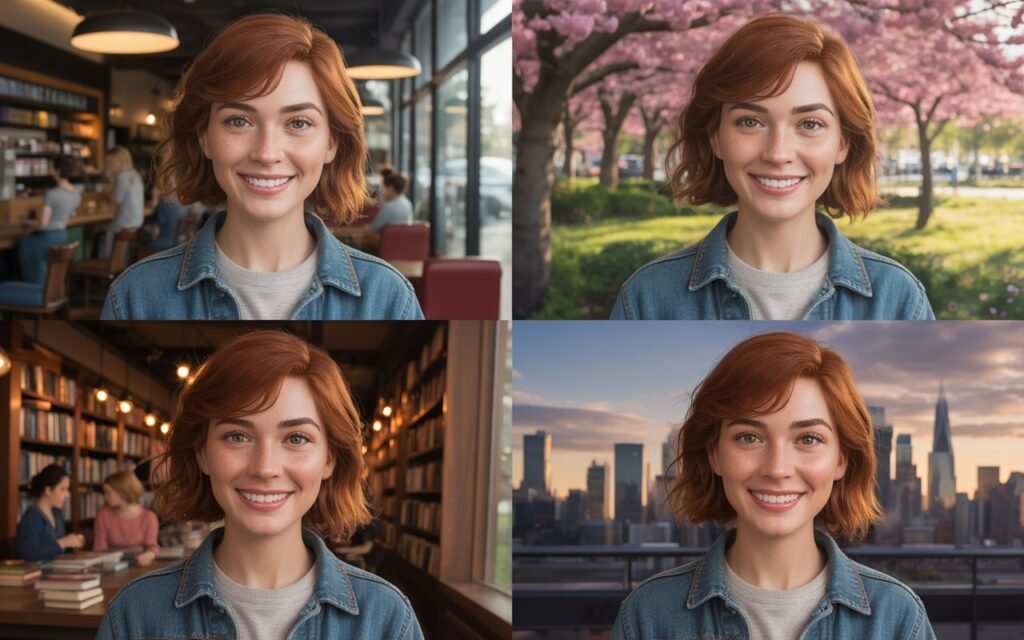
AI image generators utilize stochastic diffusion processes, meaning they start from random latent noise and denoise into a final image. By default, this mathematical randomness guarantees that generating the “same” character twice yields structurally different facial geometry. Maintaining character consistency—the holy grail of AI comic creation, storyboarding, and game asset generation—requires overriding this latent randomness. This is achieved by anchoring the neural network to fixed numerical seeds, utilizing explicit character reference flags (like Midjourney’s --cref), or injecting heavily weighted specialized tensor weights (LoRAs and IP-Adapters in Stable Diffusion). This technical guide outlines the precise architectural workflows required to lock facial morphology across Midjourney and local Stable Diffusion environments, allowing administrators and creators to force the model to render identical phenotypic traits across limitless environments and poses.
Prerequisites Before You Begin
Before modifying generation parameters and injecting custom neural weights, ensure you have the following access levels and toolsets deployed:
-
Midjourney V6 Active Subscription: Required to execute the proprietary
--crefsyntax directly via the Discord command-line interface. -
Stable Diffusion WebUI: A fully updated local installation of Automatic1111 or ComfyUI to handle custom checkpoints and extensions.
-
Dedicated Hardware: A discrete GPU with a minimum of 12GB NVIDIA VRAM (e.g., RTX 3060 or higher) for local LoRA training or high-resolution IP-Adapter rendering.
-
Curated Reference Dataset: 10 to 15 high-quality, uncompressed, varied-angle headshots of the target character under neutral lighting conditions.
-
ControlNet Extension: Installed within your Stable Diffusion WebUI environment, specifically with the
ip-adapter-faceidmodels and preprocessors downloaded to yourmodels/ControlNetdirectory.
Step-by-Step Solutions
Method 1: Utilizing Character Reference (–cref) in Midjourney V6 (The Discord Approach)
Midjourney V6 introduced a proprietary Character Reference parameter that algorithmically extracts phenotypic features from a source image and applies them to the newly generated latent space, bypassing the need for complex prompt engineering.
Step 1: Upload and Isolate the Reference Node
Open your Midjourney Discord server or direct message bot. Click the + (Plus) icon next to the chat bar and select Upload a File. Upload a clear, forward-facing image of your character. Press Enter to send it to the chat. Once uploaded, click the image to expand it, right-click (or long-press), and select Copy Image Address. You must secure the direct .png or .jpg Discord CDN URL.
To verify this step was successful, paste the copied URL into your browser’s address bar; the image should load cleanly on a blank background.
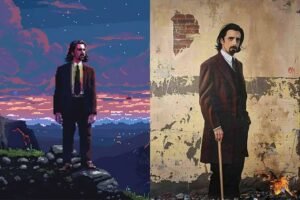
Step 2: Append the –cref and –cw Parameters
Initiate a new prompt by typing /imagine. Write your environment and action prompt first (e.g., A cinematic shot of a cyberpunk detective walking through a neon-lit alleyway). At the very end of the prompt string, type --cref followed by a space, and paste the Discord CDN URL you copied in Step 1. Immediately following the URL, append the Character Weight parameter: --cw 100.
To verify this step was successful, ensure your prompt syntax looks exactly like this: /imagine prompt: [action] --cref [URL] --cw 100.
Step 3: Modulate the Character Weight for Outfit Changes
The --cw (Character Weight) scale runs from 0 to 100. Setting --cw 100 forces the algorithm to copy the face, hair, and exact clothing of the reference. If you want the exact same face but need the character in a different outfit specified in your text prompt, you must lower the weight. Modify the string to --cw 0. This isolates the facial geometry and allows your text prompt to dictate the clothing and environment.
To verify this step was successful, execute the prompt; the resulting grid should feature your character’s exact face wearing the newly prompted attire.
Method 2: Deploying IP-Adapter FaceID via ControlNet in Stable Diffusion (The Local Approach)
For local, uncensored, and highly controlled workflows, Stable Diffusion relies on ControlNet. The IP-Adapter FaceID neural network explicitly extracts facial embeddings from a reference image and injects them into the U-Net during the diffusion process.
Step 1: Configure the ControlNet Preprocessor
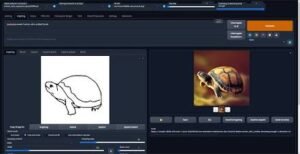
Launch your Automatic1111 WebUI and navigate to the txt2img tab. Scroll down to the ControlNet dropdown menu and expand it. Drop your reference headshot into the ControlNet image canvas. Check the Enable and Pixel Perfect boxes.
To verify this step was successful, the ControlNet UI should highlight your uploaded reference image and show the module as active.
Step 2: Select the IP-Adapter FaceID Model
Under the ControlNet settings, locate the Control Type radio buttons and select IP-Adapter. In the Preprocessor dropdown, select ip-adapter_face_id_plus. In the Model dropdown, select the corresponding ip-adapter-faceid-plus_sd15 (or SDXL equivalent, depending on your base checkpoint).
To verify this step was successful, ensure no errors appear in your terminal console indicating missing .pth or .safetensors model files.
Step 3: Lock the Prompt and Render
Write your text prompt at the top of the GUI. Crucially, your text prompt must accurately describe the face in the reference image (e.g., “1girl, brown hair, green eyes, sharp jawline”). IP-Adapter works by guiding the text prompt, not replacing it. Set the ControlNet Control Weight to 0.6 or 0.7 (a weight of 1.0 often burns the image). Click Generate.
To verify this step was successful, the generated output will feature a photorealistic recreation of your reference character’s face seamlessly integrated into the new scene.
Method 3: Training a Custom LoRA Checkpoint (The Enterprise Approach)
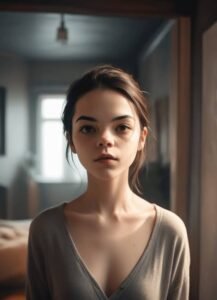
When you need absolute 1-to-1 consistency across thousands of frames (such as in game development or graphic novels), relying on reference images is insufficient. You must train a Low-Rank Adaptation (LoRA) model. A LoRA alters the actual weights of the base Stable Diffusion model, permanently teaching it a new concept (your character).
Step 1: Curate and Tag the Dataset
Create a local folder containing 15-20 high-resolution images of your character. Use a tool like WD14 Tagger to generate a .txt file for every image containing comma-separated descriptive tags. You must define a unique trigger word that the base model does not know (e.g., chrx_johnson). Include this trigger word at the beginning of every .txt file.
To verify this step was successful, your folder should contain an equal number of .png and .txt files, perfectly paired by filename.
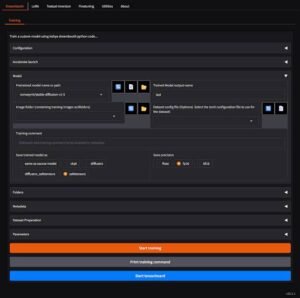
Step 2: Train via Kohya_ss GUI
Launch the Kohya_ss GUI. Navigate to the Dreambooth LoRA tab. Select your base model (e.g., SD 1.5 or SDXL). Point the Image folder to your curated dataset directory. Set the Network Rank (Dimension) to 32 and the Network Alpha to 16. Set your Epochs to 10. Click Start Training.
To verify this step was successful, watch the terminal window; you should see a progress bar iterating through the steps, ultimately outputting a .safetensors file.
Step 3: Inject the LoRA Network into the Generation Pipeline
Move the generated .safetensors file into your Stable Diffusion WebUI models/Lora directory. Refresh your networks. In your txt2img prompt box, type your unique trigger word and call the LoRA network using the specific syntax: <lora:your_filename:0.8>. Click Generate.
To verify this step was successful, the AI will bypass standard latent generation and explicitly pull the mathematical weights you trained, rendering your character flawlessly without the need for external reference images.
Troubleshooting Common Pitfalls
If your characters are suffering from facial melting, stylistic bleeding, or aggressive artifacting, refer to this diagnostic table:
| If you see this error | Do this to fix it |
| Character face merges with another person in the prompt | The neural network is confusing multiple subjects. In Midjourney, isolate subjects using pan/zoom. In Stable Diffusion, utilize the Regional Prompter extension to restrict the LoRA or IP-Adapter to a specific mask/grid coordinate. |
| LoRA generates burned, over-saturated, or deep-fried pixels | The LoRA network weight is mathematically overloading the base checkpoint. In your prompt, decrease the network multiplier from <lora:name:1.0> to <lora:name:0.5> or lower. |
| ControlNet throws a CUDA Out of Memory (OOM) fatal error | IP-Adapter loads a secondary vision model into VRAM alongside the base U-Net. Enable Low VRAM mode in ControlNet settings, or append --medvram to your webui-user.bat launch arguments. |
3 Common Mistakes Users Make During This Process
-
Using Heavily Stylized Reference Images: Feeding an IP-Adapter or Midjourney
--crefan image with extreme dramatic lighting (e.g., half the face in pitch-black shadow) forces the AI to interpret the shadow as a physical facial feature. Always use flat, neutral, studio-lit reference images to capture raw geometry. -
Failing to Lock the Seed for Iteration: If you are trying to make minor adjustments to a successful generation, failing to lock the numerical seed means the AI will reroll the entire latent noise pattern. Always extract the seed from a successful generation and input it manually before tweaking prompts.
-
Overprompting the Facial Features: When using a custom LoRA or IP-Adapter, typing “big nose, blue eyes, sharp chin” in your text prompt creates a conflict. The text encoder fights the LoRA weights. If you are using a character model, let the model do the work; keep your text prompt focused entirely on the action and environment.
Final Thoughts
Achieving absolute facial consistency transitions AI image generation from a stochastic slot machine to a controllable, enterprise-grade production pipeline. Whether leveraging Midjourney’s explicit reference syntax or engineering custom LoRA models in a local Stable Diffusion architecture, strict parameter control and dataset curation are the definitive mechanisms for eliminating variation and cementing character identity.