
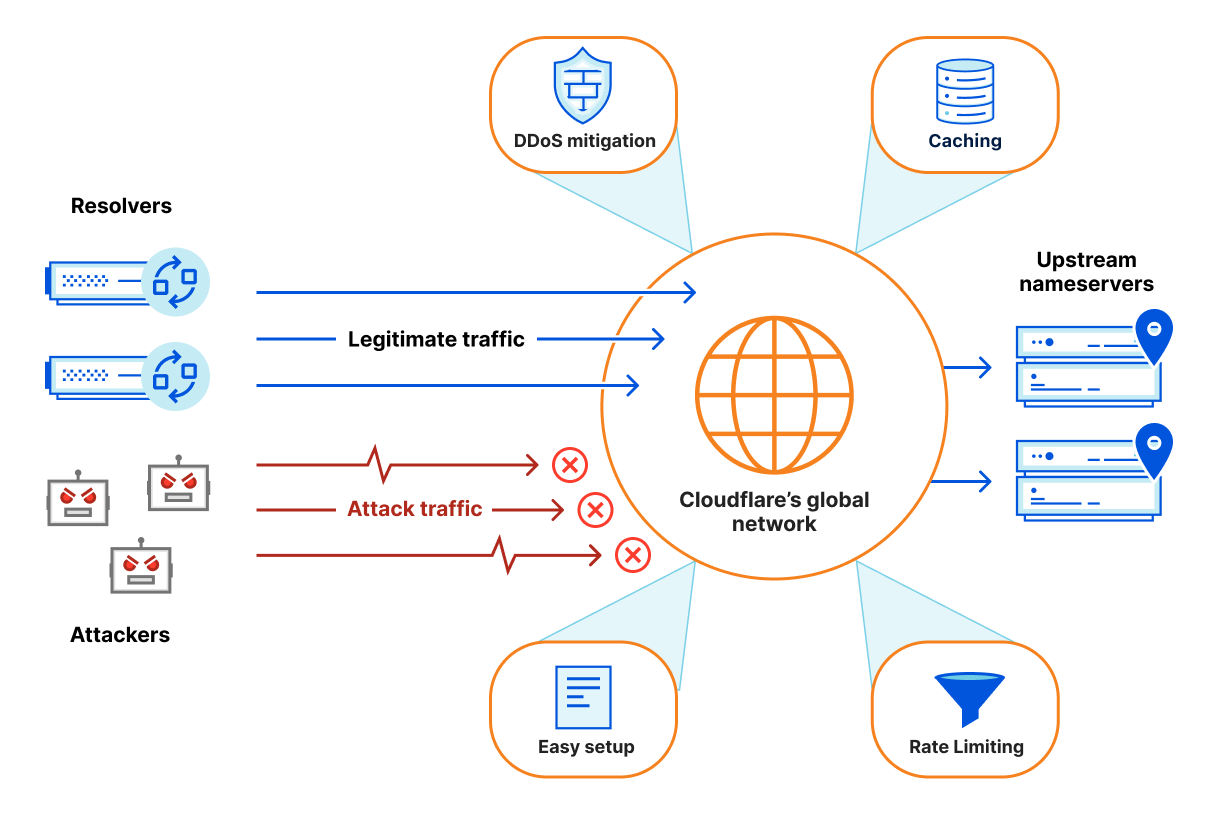
Slow Time to First Byte (TTFB) directly kills niche site conversions and severely throttles organic crawl budgets. While Cloudflare’s Free Tier defaults to proxying DNS and caching static assets (images, CSS, JS), it fundamentally ignores dynamic HTML by default. This means every frontend page load still traverses the internet to hit your origin server, compile PHP, and query the database. To achieve sub-100ms response times globally without upgrading to Enterprise plans, you must configure aggressive Cache Rules to serve full-page HTML directly from Cloudflare’s edge nodes, while strictly bypassing administrative paths to prevent caching your backend dashboards. This technical guide outlines the precise DNS validation, edge caching algorithms, and speed optimization settings required to offload your origin server, eliminate processing bottlenecks, and slash TTFB using entirely free infrastructure.
Prerequisites Before You Begin
Before altering edge caching rules and proxy routing, ensure you have the following access levels and foundational configurations deployed:
-
Active Cloudflare Zone: Your domain must be successfully added to Cloudflare with the nameservers fully propagated.
-
Origin SSL Certificate: A valid, active SSL certificate installed on your origin hosting server (e.g., Let’s Encrypt, cPanel AutoSSL) to prevent 522 errors and redirect loops.
-
Origin Caching Plugin: A WordPress caching plugin (like SuperFlare, LiteSpeed Cache, or W3 Total Cache) to handle server-side DOM minification and transmit the correct
Cache-Controlorigin headers. -
Testing Utilities: Access to GTmetrix, WebPageTest, or a terminal running
cURL -Ito inspect HTTP response headers and verify cache hits (CF-Cache-Status: HIT).
Step-by-Step Solutions
Method 1: Enforcing Strict SSL and DNS Proxy Routing (The Network Layer)
Before Cloudflare can cache your HTML or optimize HTTP/3 traffic, your DNS records must route through their proxy network, and the encryption tunnel to your origin must be absolute.
Step 1: Verify the DNS Proxy Status Navigate to the DNS > Records tab in your Cloudflare dashboard. Locate the primary A record (pointing to your server IP) and the CNAME record for www. Ensure the toggle under the “Proxy status” column is switched to the right and displays the orange cloud icon labeled Proxied. If it is set to “DNS Only” (grey cloud), traffic bypasses Cloudflare entirely. To verify this step was successful, ping your domain in a terminal. The returned IP address should resolve to a Cloudflare IP (e.g., 104.21.x.x), not your actual origin server IP.
Step 2: Configure Full (Strict) SSL/TLS Encryption Navigate to SSL/TLS > Overview. Change the encryption mode from “Flexible” or “Full” to Full (strict). “Flexible” causes infinite redirect loops in WordPress, and standard “Full” allows invalid certificates. “Full (strict)” forces end-to-end encryption using a trusted CA certificate on your origin, securely encrypting the connection between Cloudflare’s edge and your server. To verify this step was successful, load your website in an incognito browser. It should load securely without throwing a 526 Invalid SSL certificate or ERR_TOO_MANY_REDIRECTS error.
Method 2: Deploying Cache Rules for Full-Page HTML Delivery (The Edge Layer)
The secret to maximizing the Free Tier is caching the actual HTML of your site at the edge. You must do this carefully using Cloudflare’s modern Cache Rules (which replaced the deprecated Page Rules) to ensure you do not cache the WordPress admin dashboard.
Step 1: Create the Cache Bypass Rule for Admin Interfaces Navigate to Caching > Cache Rules. Click Create rule. Name this rule “Bypass WP Admin”. Under “When incoming requests match…”, set the field to URI Path, the operator to contains, and the value to /wp-admin/. Click the Or button and add another condition: URI Path > contains > /wp-login.php. Under the “Cache eligibility” section, select Bypass cache. Click Deploy. To verify this step was successful, log into your WordPress dashboard, open the browser’s network inspector, and check the headers for a /wp-admin/ request. The CF-Cache-Status header must read BYPASS.
Step 2: Create the “Cache Everything” Rule for Frontend Traffic Back in the Cache Rules menu, click Create rule again. Name it “Cache Frontend HTML”. This rule must sit below your Bypass rule in the priority list. Under matching, set URI Path > contains > /. Under “Cache eligibility”, select Eligible for cache. Scroll down to “Edge TTL”, select Override origin, and set the value to 2 hours (or longer depending on your publishing frequency). Click Deploy. To verify this step was successful, load a standard blog post in an incognito window, refresh the page twice, and check the network inspector headers. The CF-Cache-Status header should now read HIT, meaning the HTML was served in milliseconds directly from the edge node.
Method 3: Activating Edge Optimization Protocols (The Performance Layer)
Once the edge is serving your HTML, you can enable Cloudflare’s advanced compression and delivery protocols to optimize the rendering path in the user’s browser.
Step 1: Enable Early Hints and Brotli Compression Navigate to Speed > Optimization > Content Optimization. Toggle Brotli to ON. Brotli compresses text-based assets (HTML, CSS, JS) up to 20% smaller than standard Gzip. Next, toggle Early Hints to ON. Early Hints leverages Cloudflare’s edge cache to send 103 Early Hints responses to browsers, instructing them to start preloading fonts and CSS before the 200 OK HTML payload even finishes compiling. To verify this step was successful, inspect your site’s headers using cURL -I -H "Accept-Encoding: br" [https://yourdomain.com](https://yourdomain.com). Look for content-encoding: br in the response, confirming Brotli compression is actively applying to your payload.
Step 2: Enable Tiered Cache Navigate to Caching > Tiered Cache. Toggle the feature to ON (often configured as Smart Tiered Cache). Tiered caching concentrates origin requests by routing lower-tier Cloudflare data centers through upper-tier regional hubs. If a visitor in London requests a file, and it is cached in the Frankfurt hub but not the London hub, London will fetch it from Frankfurt instead of hitting your origin server. To verify this step was successful, check your Cloudflare Analytics after 24 hours. You should see a noticeable increase in your overall Cache Hit Ratio and a drop in bandwidth hitting your origin server.
Troubleshooting Common Pitfalls
If your site experiences broken layouts, login loops, or fails to register cache hits, refer to this diagnostic table:
3 Common Mistakes Users Make During This Process
-
Ordering Cache Rules Incorrectly: Cloudflare evaluates rules from top to bottom. If your “Cache Everything” rule sits above your “Bypass WP Admin” rule, Cloudflare will cache your backend dashboard, causing critical security vulnerabilities and locking you out of the site. Always put Bypass rules at the absolute top.
-
Forgetting to Purge the Cache After Updates: When caching full-page HTML at the edge, publishing a new post or changing a CSS color will not reflect immediately on the live site. You must manually click Purge Everything in the Cloudflare dashboard, or install a plugin like SuperFlare to auto-purge the API upon post updates.
-
Using “Development Mode” as a Permanent Fix: When a layout breaks, users often click “Development Mode” to bypass the cache and never turn it off. This completely disables Cloudflare’s performance features. Instead, isolate the exact broken script, exclude it via Cache Rules, and leave the caching engine enabled.
Final Thoughts
Configuring the Cloudflare Free Tier transforms a struggling shared hosting plan into a globally distributed, high-availability architecture. By meticulously defining Cache Rules to serve static HTML from the edge, enforcing strict SSL handshakes, and leveraging Brotli compression, systems administrators can guarantee sub-100ms TTFB and pass Core Web Vitals on any niche digital asset.