
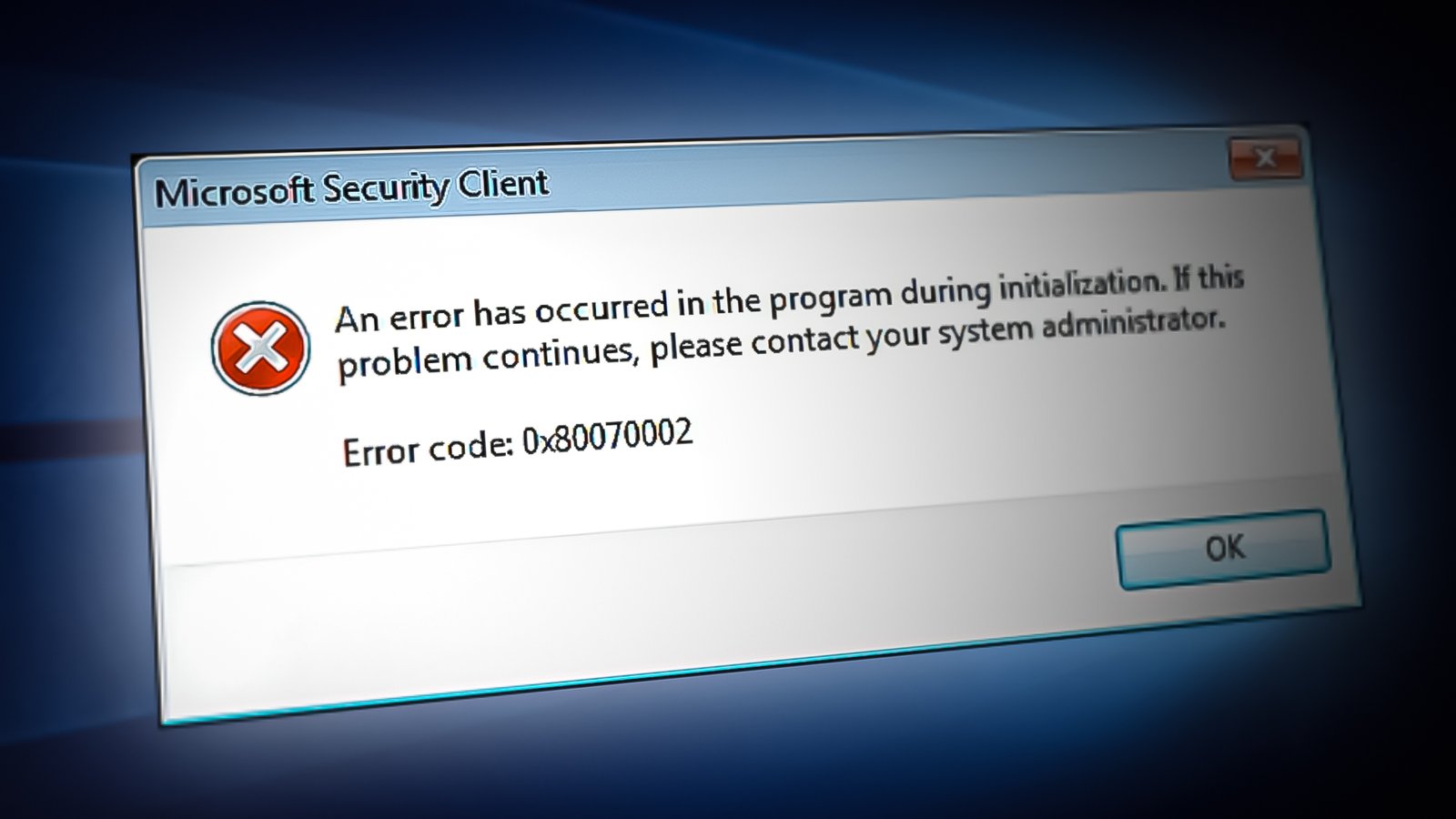
Windows Update Error Code 0x80070002 translates natively to ERROR_FILE_NOT_FOUND within the Windows kernel architecture. This systemic failure occurs when the Windows Update agent successfully communicates with Microsoft’s servers and downloads an update package, but cannot locate or extract the necessary cryptographic payloads to initiate the installation phase. This missing file state is almost exclusively caused by corrupted extraction manifests within the SoftwareDistribution directory, mismatched cryptographic signatures in the catroot2 folder, or underlying corruption in the Windows Component Store (WinSxS). Because the updater is hardcoded to halt execution rather than install a potentially broken or malicious package, the system locks itself into an endless download-and-fail loop. This technical guide outlines the precise command-line interventions, system image repairs, and manual extraction workflows required to bypass the corrupted cache, repair the registry mismatches, and force the update to install cleanly at the bare-metal level.
Prerequisites Before You Begin
Before altering core Windows directories or executing deployment imaging scripts, ensure you have the following access levels and failsafes actively deployed:
-
Administrator-Level Access: You must have full local administrator privileges to stop background telemetry services and modify root system directories.
-
System Restore Point: Press
Win + S, type “Create a restore point”, and execute a manual system snapshot. This provides an immediate rollback vector if a command-line syntax error corrupts the boot sector. -
Disabled Third-Party Security: Temporarily disable third-party antivirus suites (e.g., Bitdefender, Norton). Aggressive heuristic scanners frequently lock the
SoftwareDistributionfolder, preventing the necessary cache purges. -
Stable Network Pipeline: Ensure a hardwired Ethernet connection if possible. Intermittent Wi-Fi drops are a primary trigger for the initial packet corruption that causes
0x80070002.
Step-by-Step Solutions
Method 1: Rebuilding the Update Cache Architecture (The Command Line Approach)
The standard Windows Update Troubleshooter rarely fixes deep structural corruption. To resolve the file mismatch, you must manually halt the background daemons, rename the corrupted cache directories to break their file locks, and allow Windows to generate a pristine, uncorrupted architecture upon the next request.
Step 1: Halt the Core Update Daemons Click the Windows Start menu, type cmd, right-click Command Prompt, and select Run as administrator. You must now kill the four independent services that govern the update pipeline: the core update engine, the cryptographic verification service, the background downloader, and the installer module. Execute the following commands one by one, pressing Enter after each:
net stop wuauserv
net stop cryptSvc
net stop bits
net stop msiserver
To verify this step was successful, check the command line output; it should explicitly state “The [Service Name] service was stopped successfully” for each of the four executed commands.
Step 2: Rename the Corrupted Cache Directories With the file locks broken, you must rename the existing cache folders. Renaming is safer than deleting, as it preserves a forensic backup if needed. The SoftwareDistribution folder holds the downloaded update payloads, while catroot2 holds the cryptographic package signatures. Execute these two commands:
ren C:\Windows\SoftwareDistribution SoftwareDistribution.old
ren C:\Windows\System32\catroot2 catroot2.old
To verify this step was successful, open Windows File Explorer and navigate to C:\Windows\; you should now clearly see a folder named SoftwareDistribution.old.
Step 3: Reignite the Update Services You must restart the daemons to instruct Windows to rebuild the newly cleared directories. In your elevated command prompt, execute the following startup sequence:
net start wuauserv
net start cryptSvc
net start bits
net start msiserver
To verify this step was successful, type sc query wuauserv into the command prompt; the output state should read RUNNING. Navigate to Settings > Windows Update and click Check for updates to force a fresh payload download.
Method 2: Repairing the Windows Component Store (The System Image Approach)
If rebuilding the update cache fails, the error 0x80070002 is stemming from a corrupted Windows Component Store (WinSxS). The update is looking for a base system file to overwrite, but the file is missing or damaged. You must use Deployment Image Servicing and Management (DISM) and the System File Checker (SFC).
Step 1: Execute a DISM RestoreHealth Operation DISM connects directly to Microsoft’s Windows Update servers to download pristine, uncorrupted system files and inject them into your local Component Store. Open an elevated Command Prompt and execute:
DISM /Online /Cleanup-Image /RestoreHealth
This process may appear stuck at 20% or 40% for several minutes; this is normal behavior as it verifies the hash blocks. To verify this step was successful, wait for the progress bar to reach 100% and look for the exact terminal output message: “The restore operation completed successfully.”
Step 2: Execute the System File Checker (SFC) Now that DISM has repaired the underlying Component Store repository, SFC can pull those healthy files to replace any active OS corruption. In the same command prompt, execute:
sfc /scannow
To verify this step was successful, review the final output message. It should read either “Windows Resource Protection found corrupt files and successfully repaired them” or “did not find any integrity violations.” Reboot your machine immediately after completion.
Method 3: Manually Injecting the Standalone Payload (The Catalog Approach)
If the Windows Update GUI continues to throw 0x80070002 due to an unresolvable server handshake issue, you can bypass the agent entirely by downloading the raw Microsoft Standalone Update (.msu) package and executing it locally.
Step 1: Identify the Failing KB Number Navigate to Settings > Windows Update > Update history. Locate the specific update that repeatedly states “Failed to install.” It will be labeled with a Knowledge Base identifier (e.g., KB5031455). To verify this step was successful, you should have the exact alphanumeric KB string written down or copied to your clipboard.
Step 2: Query the Microsoft Update Catalog Open your web browser and navigate to the official Microsoft Update Catalog ([https://www.catalog.update.microsoft.com/](https://www.catalog.update.microsoft.com/)). Paste your KB number into the search bar. You will see multiple architectures (ARM64, x64, x86). If you are using a standard modern PC, locate the entry labeled Windows 10/11 x64-based Systems. Click the Download button. A new window will pop up with a direct hyperlink; click the link to download the file. To verify this step was successful, navigate to your local Downloads folder and confirm the presence of a large .msu file.
Step 3: Execute the Local Update Installation Double-click the downloaded .msu file. The Windows Update Standalone Installer will initialize, bypass the network check, and unpack the files directly into the system layer. To verify this step was successful, reboot your machine when prompted, navigate back to Update history, and confirm the target KB number is now explicitly listed under the “Successfully installed” category.
Troubleshooting Common Pitfalls
If you deviate from the standard architecture or encounter secondary errors during the cache rebuild, refer to this diagnostic table:
3 Common Mistakes Users Make During This Process
-
Running SFC Before DISM: Users frequently run
sfc /scannowas a blanket fix. However, if the underlyingWinSxSComponent Store is corrupted, SFC will fail because it relies on the Component Store for its replacement files. Always execute DISM before SFC to ensure the repository is healthy. -
Deleting Instead of Renaming the Cache: Blindly deleting the
SoftwareDistributionfolder removes your ability to roll back the cache if the system becomes unstable. By renaming it to.old, Windows still ignores it, but you preserve a forensic backup of your update history that can be restored if needed. -
Relying Solely on the GUI Troubleshooter: The built-in “Windows Update Troubleshooter” merely clears basic registry flags and restarts the
wuauservdaemon. It rarely possesses the permissions required to purge deeply corrupted payload folders. Relying on it wastes time when command-line intervention is required.
Final Thoughts
Resolving Error Code 0x80070002 demands direct manipulation of the Windows network architecture. By systematically halting the update daemons, purging the corrupted cache directories, and repairing the underlying Component Store via DISM, you eliminate the misaligned cryptographic signatures causing the failure and restore the operating system’s update pipeline to factory-grade stability.