
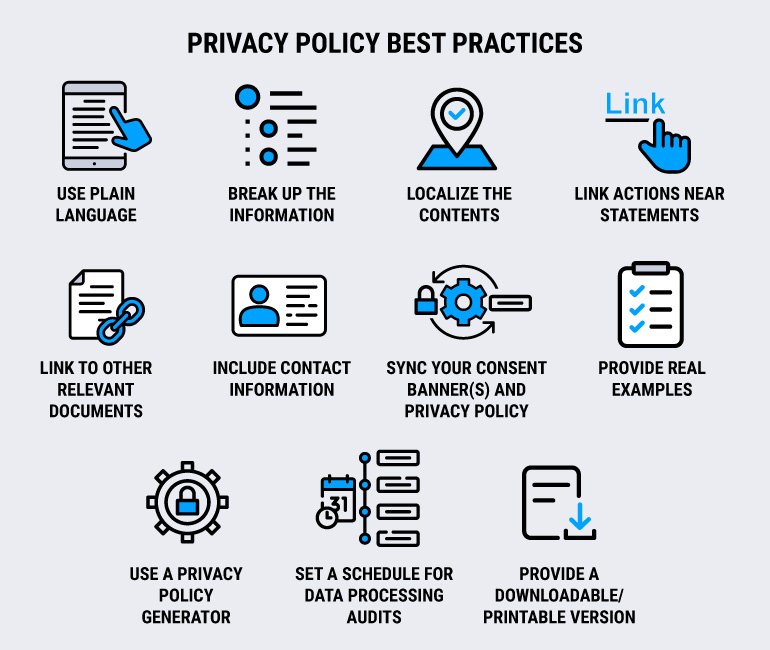
Digital publishing in the modern era requires strict adherence to overlapping international privacy frameworks, including the General Data Protection Regulation (GDPR), the California Privacy Rights Act (CPRA), and CalOPPA. A static, hardcoded Privacy Policy or Terms of Service (ToS) page is no longer sufficient; it is a massive legal liability. When managing a portfolio of monetized WordPress sites, administrators must deploy dynamic, auto-updating compliance documents that integrate directly with active server cookies and third-party trackers. Failure to accurately declare data processing mechanisms or secure explicit user consent will result in severe algorithmic consequences, ranging from Google AdSense account suspensions to catastrophic regulatory fines. This technical guide outlines the exact administrative configurations required to deploy compliant, scalable legal pages, configure IAB-validated Consent Management Platforms (CMPs), and synchronize your frontend architecture with global ad network consent requirements to ensure uninterrupted monetization.
Prerequisites Before You Begin
Before altering your site’s legal architecture or modifying consent variables, ensure you have the following access levels and details verified:
-
Administrator-Level WordPress Access: Full capabilities to install plugins, modify navigation menus, and publish core pages within your CMS.
-
Consent Management Platform (CMP): An IAB TCF v2.2 certified WordPress plugin (e.g., Complianz, Cookiebot, or CookieYes) to handle dynamic script blocking.
-
Ad Network Credentials: Administrative access to your Google AdSense, Ad Manager, or primary ad broker dashboard to configure privacy messaging payloads.
-
Company Legal Information: Your official registered business name, physical address, and a dedicated Data Protection Officer (DPO) or privacy contact email.
Step-by-Step Solutions
Method 1: Deploying an IAB-Approved Consent Management Platform (CMP)
A robust CMP acts as the foundation of your compliance architecture, automatically detecting trackers and generating dynamic legal text based on your actual server behavior.
Step 1: Install and Initialize the Complianz Framework Navigate to Plugins > Add New Plugin in your WordPress dashboard. Search for “Complianz” and install the core framework. Once activated, click on Complianz in the left-hand sidebar to launch the configuration wizard. This framework operates as an automated legal engine, dynamically generating privacy policies based on your specific server architecture rather than relying on generic, inaccurate templates. Ensure your site operates on HTTPS, as secure connections are a hard requirement for modern cookie handling. To verify this step was successful, ensure the Complianz dashboard loads without conflicting with your existing caching plugins or displaying REST API errors.
[📸 INSERT SCREENSHOT HERE: The Complianz configuration dashboard inside WordPress, highlighting the Wizard navigation tab and progress bar]
Step 2: Execute the Server-Side Cookie Scan Within the Complianz wizard, navigate to the Wizard > Cookies section. Click Scan my website. The plugin will dispatch a crawler across your frontend to identify every active script, tracking pixel, and local storage deployment (including WordPress core cookies, Google Analytics, social sharing buttons, and ad network trackers). You must accurately categorize these discovered elements into Functional, Statistics, and Marketing silos. Complianz synchronizes with cookiedatabase.org to automatically identify known third-party vendor scripts. To verify this step was successful, review the generated cookie list to ensure no rogue third-party trackers are running undetected on your domain.
Step 3: Generate and Publish Dynamic Legal Documents Proceed to the Documents phase of the wizard. Select the requirement to generate a Privacy Policy, Cookie Policy, and Terms of Service tailored to your target geographic regions (e.g., US, EU, UK). Complianz will compile the results of your cookie scan and your corporate details into legally binding text blocks. It automatically creates the WordPress pages and injects its proprietary shortcodes (e.g., [cmplz-privacy-policy]). Click Finish to push these pages live. To verify this step was successful, navigate to your live frontend and confirm the generated Privacy Policy dynamically lists the exact cookies discovered during the scan in a neat, readable table.
[📸 INSERT SCREENSHOT HERE: The WordPress Block Editor displaying a generated Privacy Policy page with dynamically injected legal text blocks]
Method 2: Configuring Ad Network Privacy Messaging
Generating the text is only half the requirement. You must actively prompt users for consent before firing advertising scripts, communicating directly with Google’s Consent Framework.
Step 1: Access the Privacy & Messaging Dashboard Log into your Google AdSense account. In the left-hand navigation menu, click Privacy & messaging. To serve personalized ads to users in the European Economic Area (EEA) and the UK, you must utilize an IAB-certified framework. Click on the GDPR configuration gear. This UI dictates exactly what the user sees when they land on your site for the first time. To verify this step was successful, you should see the central management hub displaying cards for GDPR, CPRA, and LGPD compliance prompts.
Step 2: Create the GDPR Consent Message Click Create message. Select your specific domain from the site list. In the configuration panel, you must input the exact URL of the dynamic Privacy Policy you generated in Method 1. Enable the Consent, Do not consent, and Manage options buttons. Under GDPR, forcing users to hunt for a “reject” button is illegal; the “Do not consent” button must have equal prominence to the “Consent” button. Click Publish. To verify this step was successful, load your site from an EEA IP address (using a VPN if necessary) and confirm the AdSense consent modal physically blocks the screen until a clear option is clicked.
[📸 INSERT SCREENSHOT HERE: The Google AdSense Privacy and messaging interface showing the GDPR consent message builder with Consent and Do Not Consent buttons enabled]
Step 3: Deploy CPRA Opt-Out Architecture Return to the Privacy & messaging tab and select CPRA (California Privacy Rights Act). California law dictates an opt-out architecture rather than strict European opt-in. Create a CPRA message in AdSense. Crucially, you must also navigate to your WordPress dashboard, go to Appearance > Menus, and manually add a custom HTML link to your global footer menu reading exactly: “Do Not Sell or Share My Personal Information.” This link must trigger your CMP’s data revocation popup. To verify this step was successful, click the newly created footer link from a standard browser window and ensure it brings up the toggle to disable marketing trackers.
[📸 INSERT SCREENSHOT HERE: A website footer displaying a clear cookie consent banner with an ‘Accept cookies’ button]
Method 3: Structuring Terms of Service (ToS) for Liability Protection
While the Privacy Policy protects the user, the Terms of Service protects your business entity from the user.
Step 1: Define User-Generated Content (UGC) and DMCA Guidelines If your publishing site allows comments, forum posts, or guest authoring, you are hosting User-Generated Content. Navigate to Pages > Add New and title it “Terms of Service.” You must create a specific section outlining your DMCA (Digital Millennium Copyright Act) takedown procedures. Explicitly state that the publisher assumes zero liability for user-submitted copyright infringement, establishing your “Safe Harbor” protection. To verify this step was successful, ensure your designated copyright agent’s contact email is prominently displayed in the DMCA section for legal notifications.
Step 2: Establish Governing Law and Jurisdiction Clauses To prevent out-of-state or international lawsuits, explicitly state the governing jurisdiction of your business operations. Write a firm clause stating: “These Terms shall be governed and construed in accordance with the laws of [Your State/Province/Country], without regard to its conflict of law provisions.” This forces any legal disputes to be handled in your local court system. To verify this step was successful, confirm your exact geographic operating location is documented accurately within the jurisdiction clause.
Step 3: Publish and Enforce Clickwrap Agreements A ToS hyperlink hidden in tiny footer text is considered a “browsewrap” agreement and is notoriously difficult to enforce in court. To create a legally binding “clickwrap” agreement, install a form plugin or modify your native WordPress comment hooks to include a mandatory checkbox that reads: “I agree to the Terms of Service and Privacy Policy.” The form must not execute the POST request unless this box is checked. To verify this step was successful, attempt to submit a comment or register an account without checking the box; the server or frontend validation must explicitly reject the payload.
Troubleshooting Common Pitfalls
If your site begins dropping tracking data or your ad network flags your domain for compliance violations, refer to this diagnostic table:
3 Common Mistakes Users Make During This Process
-
Copy-Pasting a Competitor’s Privacy Policy: Blindly copying legal text from another website means you are declaring server architectures and third-party vendors that you do not actually use, rendering the document legally invalid and exposing you to misrepresentation liabilities.
-
Ignoring the Transparency and Consent Framework (TCF) v2.2: Utilizing a cheap or outdated cookie banner plugin that is not IAB TCF v2.2 certified will result in immediate ad serving suspensions in Europe, as ad brokers require the specific TCF cryptographic consent string to bid on your inventory.
-
Failing to Update Policies After Plugin Additions: Installing a new social sharing plugin, an AI chatbot, or a heatmap tool introduces new cookies to your site. Failing to re-run your CMP’s cookie scan means your Privacy Policy instantly falls out of compliance the moment the new plugin is activated.
Final Thoughts
Compliance is an ongoing administrative duty, not a one-time configuration task. Always audit your WordPress plugin stack quarterly. Ensure any newly installed tracking pixels, analytics tools, or monetization scripts are immediately appended to your Privacy Policy via a fresh server-side cookie scan to maintain strict regulatory adherence and protect your digital assets.