
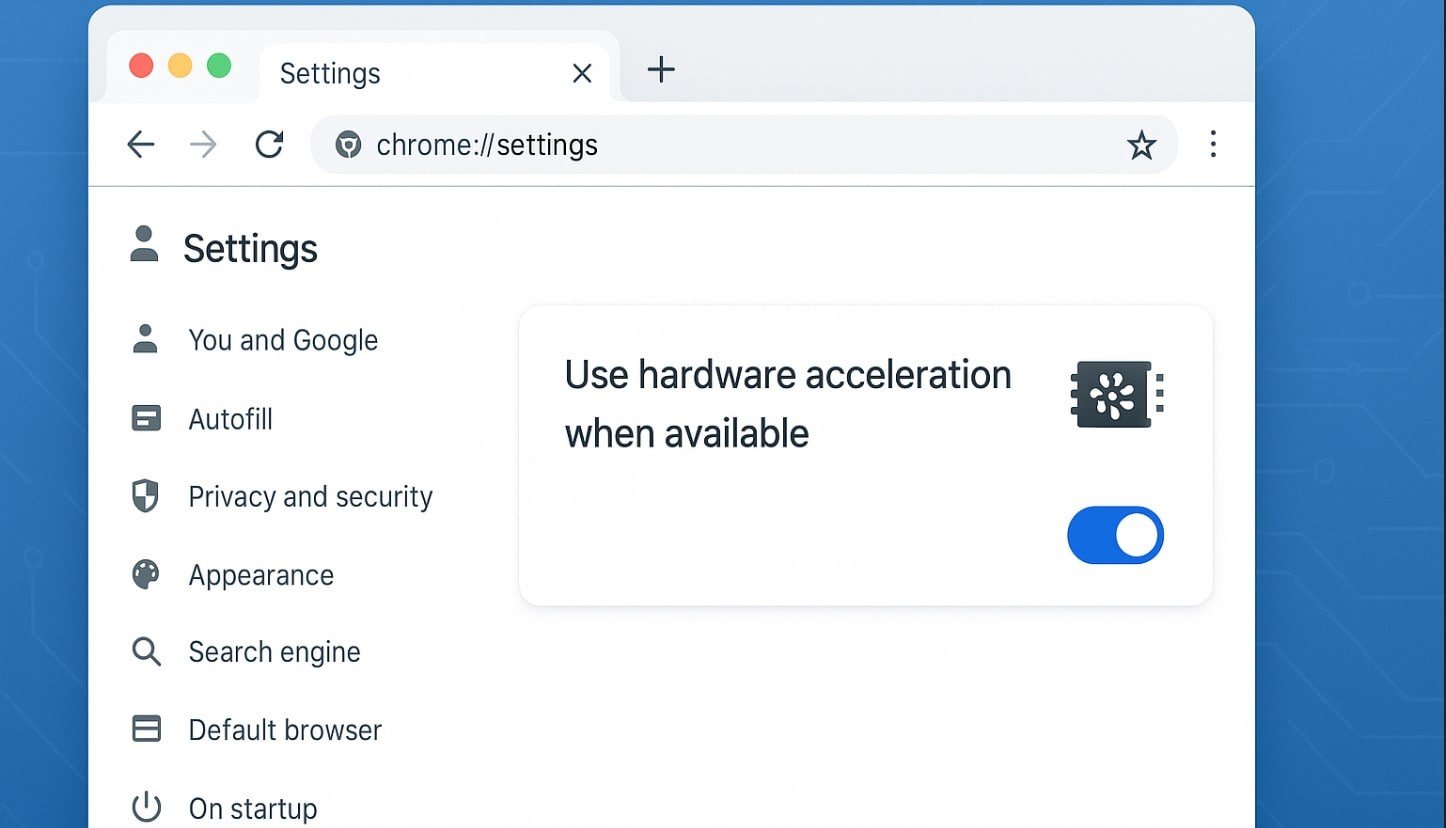
The “WebGL Hardware Acceleration Disabled” error occurs when a web browser refuses to utilize your computer’s Graphics Processing Unit (GPU) to render 2D and 3D web graphics. WebGL (Web Graphics Library) is a JavaScript API designed to offload heavy rendering tasks from your CPU directly to your GPU. When this pipeline breaks, browsers fallback to software rendering, forcing the CPU to calculate complex graphics. This results in severe latency, high fan noise, choppy video playback, and the outright failure of in-browser design tools like Figma or Canva.
This failure typically happens for three reasons: the user or a third-party extension accidentally toggled the hardware acceleration setting off, the installed GPU drivers are corrupted or outdated, or the browser has intentionally placed your specific graphics card on a software blocklist due to known rendering bugs. This technical guide provides the explicit steps to re-enable hardware acceleration, bypass browser blocklists via configuration flags, and permanently resolve driver incompatibilities across Chrome, Edge, and Firefox.
Prerequisites Before You Begin
Before modifying browser flags or forcing hardware overrides, verify you have the following access levels and conditions met:
-
Administrator Access: Full system privileges in Windows or macOS to install or update core GPU display drivers if the browser-level fixes fail.
-
Updated Browser Version: Ensure you are running the latest stable build of Chrome, Firefox, or Edge, as deprecated builds often lose WebGL support automatically.
-
WebGL Diagnostic URL: Keep the official testing URL (
[https://get.webgl.org/](https://get.webgl.org/)) open in a separate tab to rapidly verify if your fixes successfully activated the rendering pipeline. -
Hardware Knowledge: (Optional but helpful) Knowing whether your machine relies on integrated graphics (e.g., Intel UHD) or a discrete GPU (e.g., NVIDIA/AMD) will help isolate driver issues.
Step-by-Step Solutions
Method 1: Re-Enabling Hardware Acceleration via Browser Settings (The Standard Approach)
The most common cause of WebGL failure is that hardware acceleration was manually disabled during previous troubleshooting efforts (e.g., trying to fix screen tearing in Discord or YouTube) and never turned back on.
Step 1: Access the System Settings in Chrome/Edge Open Google Chrome. Type chrome://settings/system directly into your address bar and press Enter. If you are using Microsoft Edge, type edge://settings/system instead. This bypasses the standard menus and drops you directly into the system performance panel.
Step 2: Toggle Acceleration and Relaunch Locate the toggle labeled Use graphics acceleration when available (or Use hardware acceleration when available). If it is greyed out (off), click the toggle to turn it blue (on). A Relaunch button will immediately appear next to the toggle. Click it to fully restart the browser process and apply the hardware hook. To verify this step was successful: Navigate to get.webgl.org. If you see a spinning 3D cube, the WebGL pipeline is successfully restored.
Step 3: Enable Acceleration in Firefox If you are using Mozilla Firefox, click the hamburger menu (three horizontal lines) in the top right and select Settings. Scroll down to the Performance section. Uncheck the box labeled Use recommended performance settings. This will reveal a hidden option. Check the box for Use hardware acceleration when available and restart the browser. To verify this step was successful: Go to the address bar, type about:support, and scroll to the “Graphics” section. Ensure your specific graphics card is listed next to “WebGL 1 Driver Renderer”.
Method 2: Bypassing the GPU Blocklist via Flags (The Override Approach)
If hardware acceleration is turned on but WebGL still fails, your specific GPU or driver version is likely on the browser’s internal blocklist. Browsers maintain a database of unstable hardware and automatically disable WebGL to prevent system crashes. You can force the browser to ignore this list.
Step 1: Access Chrome/Edge Flags In Chrome, type chrome://flags in the address bar and press Enter. In Edge, type edge://flags. This opens the experimental features console.
Step 2: Force-Enable the Blocklist Override In the search bar at the top of the Flags page, type Override software rendering list (older versions may list it as ignore-gpu-blocklist). Click the dropdown menu next to this setting and change it from Disabled to Enabled. Click the Relaunch button that appears at the bottom of the screen. To verify this step was successful: Type chrome://gpu into the address bar. Look under the “Graphics Feature Status” heading. Both “WebGL” and “WebGL2” should now explicitly say Hardware accelerated in green text.
Step 3: Override the Blocklist in Firefox Firefox controls this override via its advanced configuration tree. Type about:config in the address bar, press Enter, and click Accept the Risk and Continue. Search for webgl.force-enabled. If it is set to false, double-click it to flip the value to true. Next, search for webgl.disabled and ensure it is set to false. Restart Firefox. To verify this step was successful: Revisit the WebGL diagnostic cube. If the cube spins smoothly without artifacting, the forced override was successful.
Method 3: Clean Installing GPU Drivers (The System Approach)
Forcing a blocklist override is a temporary patch. If your GPU is blocklisted, it means your drivers are severely outdated or corrupted. Updating the drivers is the only permanent solution to ensure stable WebGL rendering.
Step 1: Download Official Manufacturer Drivers Identify your GPU manufacturer (NVIDIA, AMD, or Intel). Navigate directly to their official driver support website. Do not rely on Windows Update or third-party “driver updater” tools, as these frequently install generic or outdated Display Driver Uninstaller (DDU) packages. Download the latest stable driver for your specific operating system.
Step 2: Execute a Clean Installation Run the downloaded driver installer. When prompted for the installation type, choose Custom (Advanced). Ensure you check the box labeled Perform a clean installation. This step is critical; it wipes the corrupted driver profiles and registry keys before installing the fresh version, preventing older conflicts from carrying over. To verify this step was successful: Your screen will flicker black a few times during the installation. Once completed and rebooted, your system resolution will return to normal.
Step 3: Revert the Browser Flags Once the new drivers are installed, the browser will automatically remove you from the blocklist. Return to chrome://flags or about:config and revert the override settings you changed in Method 2 back to their default states. Relying on an override permanently can cause browser instability during future updates. To verify this step was successful: With the overrides disabled, check chrome://gpu once more. WebGL should remain listed as “Hardware accelerated” natively, confirming the new driver solved the root blocklist issue.
Troubleshooting Common Pitfalls
3 Common Mistakes Users Make During This Process
-
Ignoring Browser Re-launches: Simply closing the browser window (the “X” button) does not fully terminate the background processes for Chrome or Edge. You must use the official Relaunch button inside the settings menu, or manually end the tasks in Windows Task Manager, for hardware acceleration hooks to initialize.
-
Updating Drivers via Device Manager: Clicking “Update Driver” inside the Windows Device Manager almost never fetches the latest rendering driver; it only fetches the latest driver certified by the Microsoft baseline repository. Always pull directly from NVIDIA, AMD, or Intel.
-
Leaving the Blocklist Override Enabled Permanently: If you force the browser to ignore the blocklist via flags, you expose the browser to potential memory leaks and kernel panics caused by the exact bugs that got the driver blocklisted in the first place. Use the flag as a diagnostic tool, then update your drivers.
Final Thoughts
Resolving WebGL hardware acceleration failures requires aligning your browser’s configuration with a healthy, up-to-date operating system graphics pipeline. By ensuring the acceleration toggle is active, temporarily bypassing aggressive blocklists for diagnostics, and maintaining clean GPU driver installations, systems administrators can guarantee that browser-based 3D applications and design tools run flawlessly.